1
Open the “Open Play” page
From the owner navigation, choose Open Play. On mobile, open the menu first and tap Open Play.
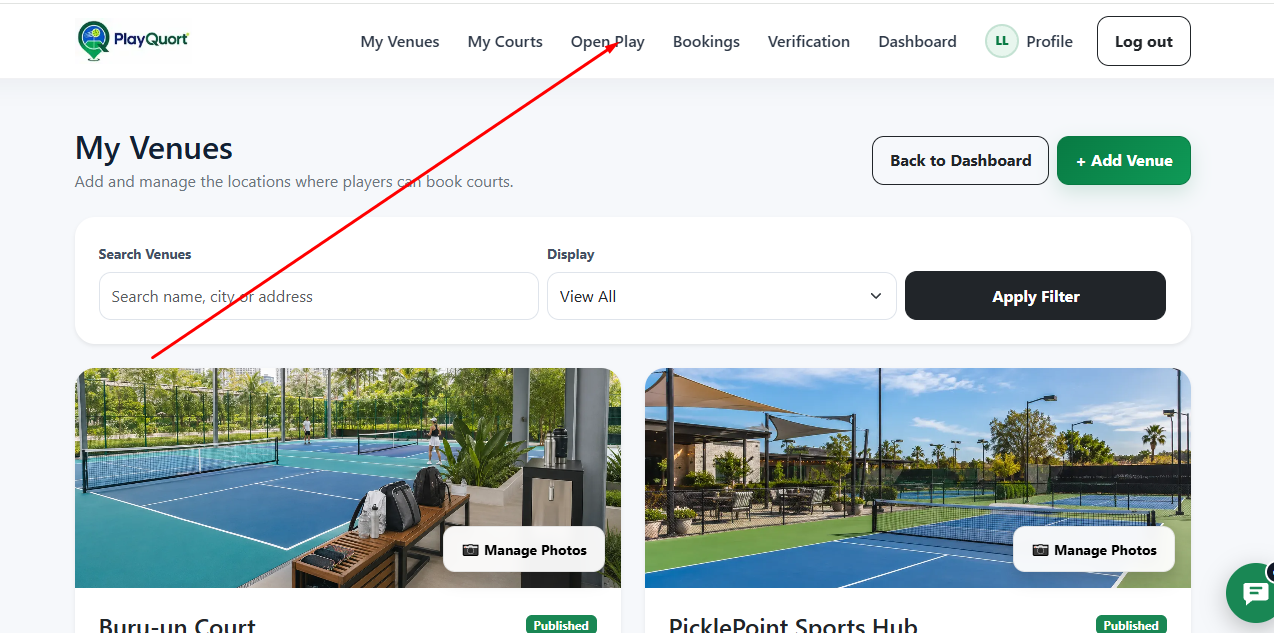
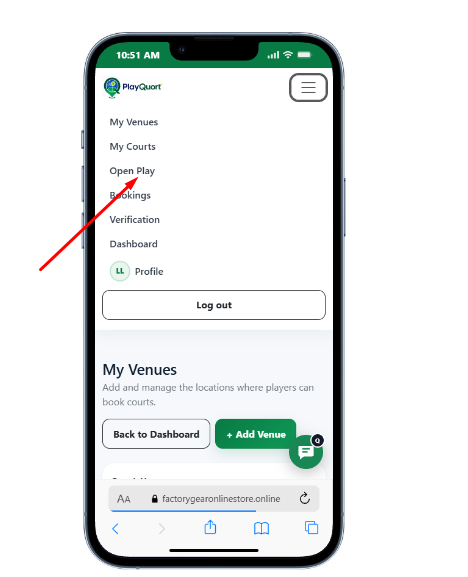
This guide is separate from venue registration. Use it after your venue and courts have already been added to PlayQuort.
From the owner navigation, choose Open Play. On mobile, open the menu first and tap Open Play.
On the Open Play page, choose + Create Open Play to start a new session.
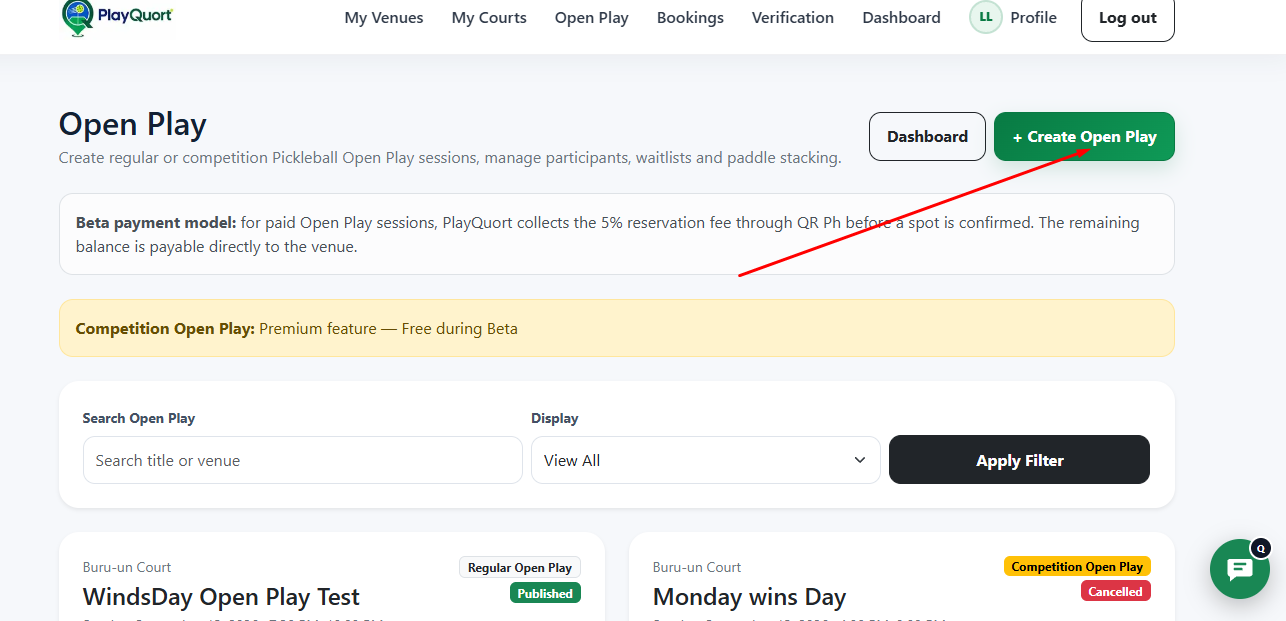
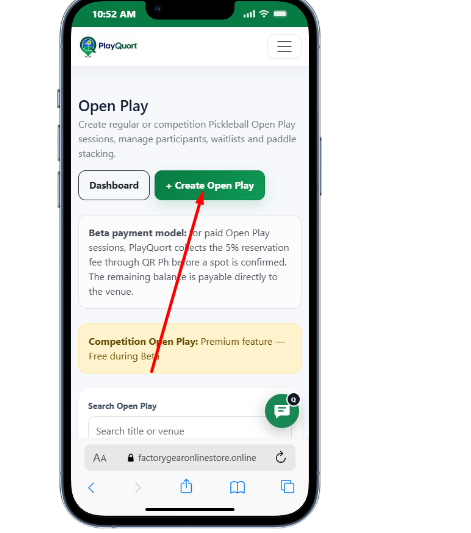
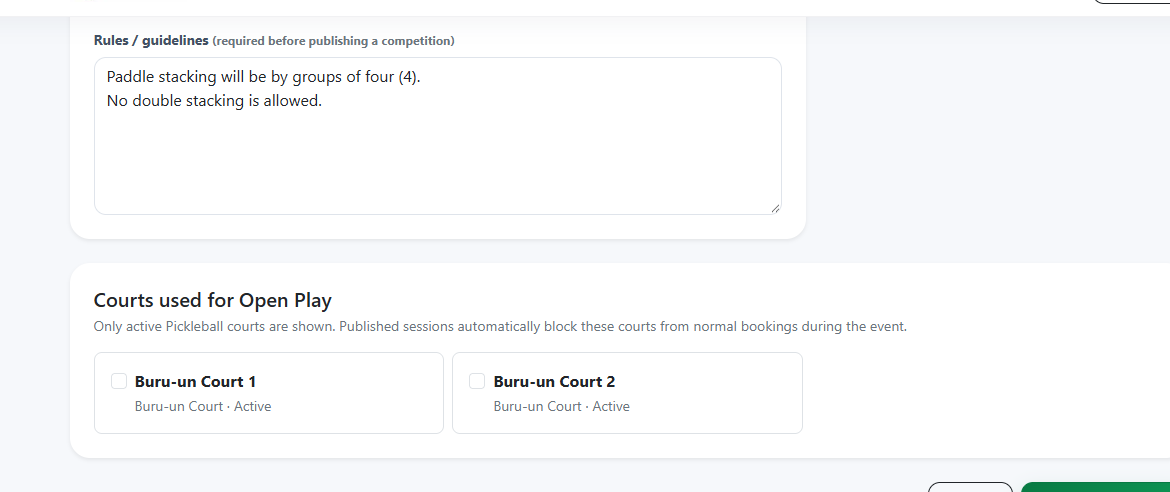
Choose Regular or Competition Open Play, add a session title, venue, start/end date and time, entry fee, maximum participants, visibility, waitlist settings, skill levels, paddle stacking, and any required rules or guidelines.
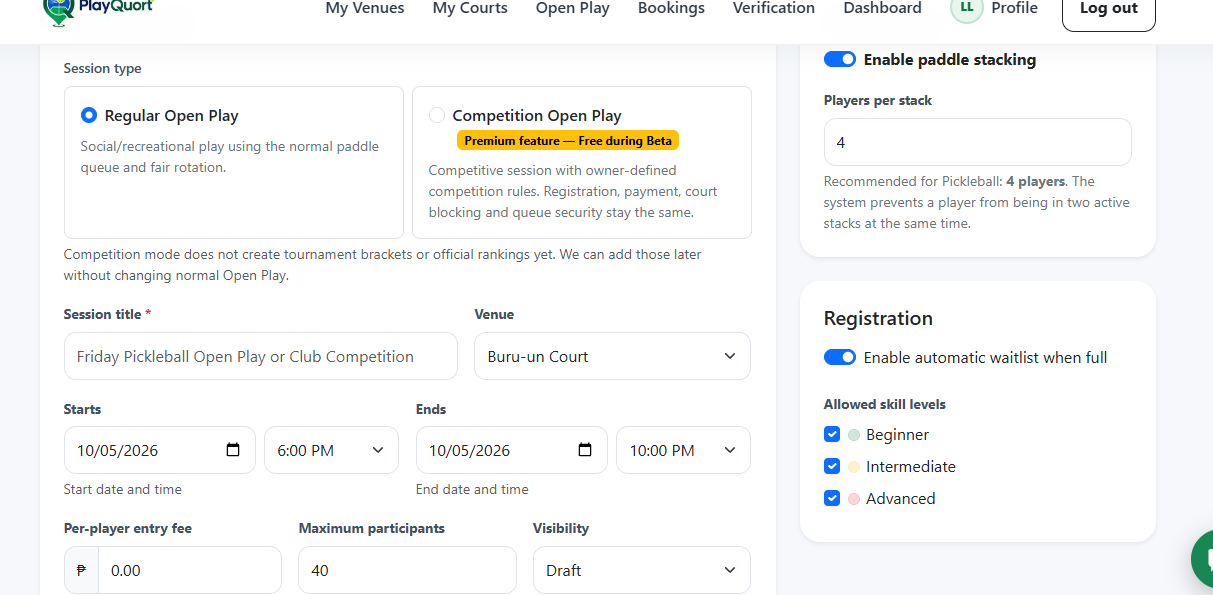
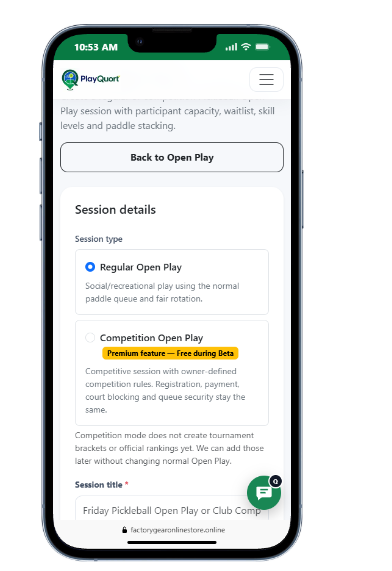
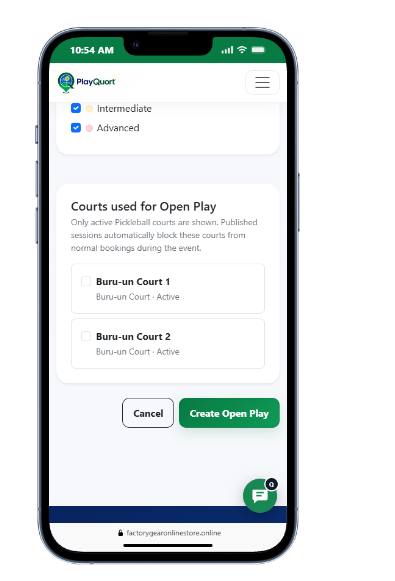
Choose the active Pickleball court or courts that will be used during the session, then click Create Open Play.
Use Publish when the session details are final and you are ready for players to see and join the session.
Keep a session unpublished or in Draft while you are still editing details and are not yet ready for players to join.
Use End Session when the Open Play has already taken place and is finished. This keeps the session record while marking the event as completed.
Use Cancel Session when the event will no longer happen. Cancel rather than End if the session did not proceed as planned.