How to Verify Your Venue Ownership on PlayQuort

Owner verification helps protect players and venue operators by confirming that the person managing a listing is the owner or an authorized representative of the venue.

What you will need

PlayQuort currently asks for three verification requirements: a government-issued ID, proof that you are allowed to manage the venue, and a current venue photo showing your unique PlayQuort verification code.

1

Open the Owner Verification Center

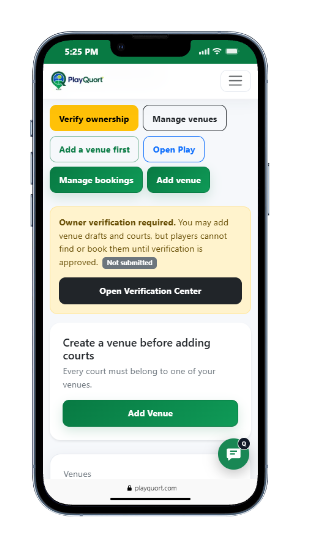
Sign in to your Venue Owner account. From the Owner Dashboard, click Verify ownership or Open Verification Center. PlayQuort will show your verification status and your unique verification code.

Keep your code exactly as shown. You will use it for the venue photo in Step 4.
From the Owner Dashboard
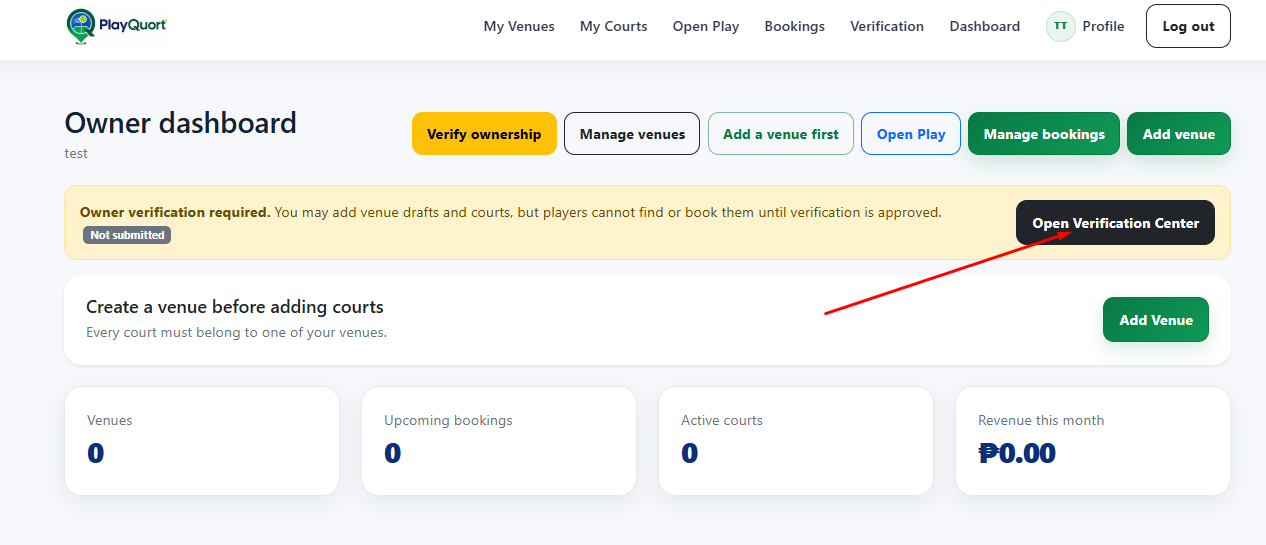
PlayQuort desktop Owner Dashboard showing Verify ownership and Open Verification Center buttons
Desktop: click Verify ownership or Open Verification Center.
PlayQuort mobile Owner Dashboard showing verification controls
Mobile: the same verification controls appear near the top of the dashboard.
2

Upload one government-issued ID

Upload one clear government-issued ID belonging to the venue owner or the authorized manager submitting the verification.

  • Make sure the ID is readable and not blurry.
  • Upload only the information PlayQuort needs for verification.
  • Accepted upload formats currently include JPG, PNG, and PDF.
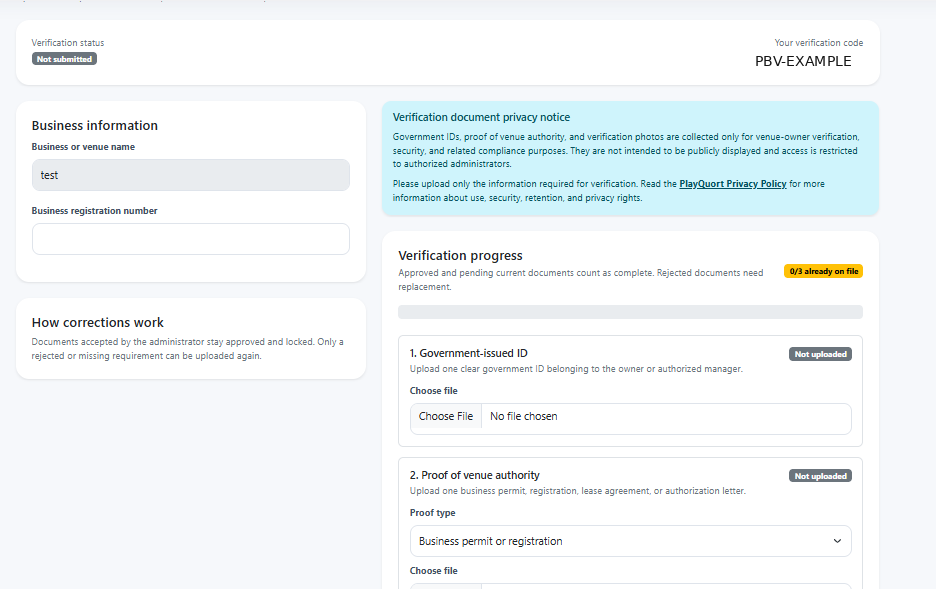
Your Verification Center
Desktop PlayQuort Verification Center with safe example verification code
Desktop: check your status, unique code, privacy notice, and verification progress.
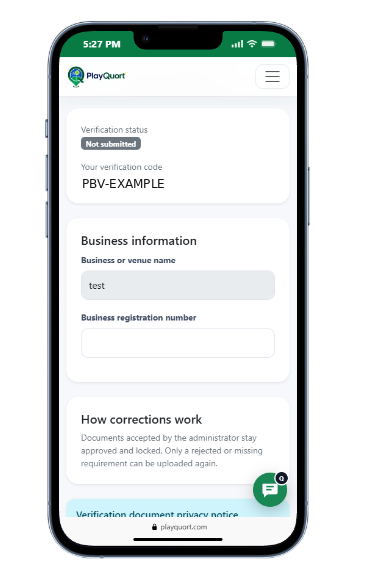
Mobile PlayQuort Verification Center with safe example verification code
Mobile: your status and unique verification code appear at the top.
Privacy note: the screenshots in this guide use PBV-EXAMPLE. Never publish a real owner's unique verification code in a public tutorial.
3

Upload proof that you can manage the venue

Provide one document showing that you own the venue or have permission to operate or manage it on PlayQuort.

  • Business permit or business registration
  • Lease agreement
  • Authorization letter from the owner
You do not need every item above. One acceptable proof of venue authority is enough for this requirement.
Upload progress and requirements
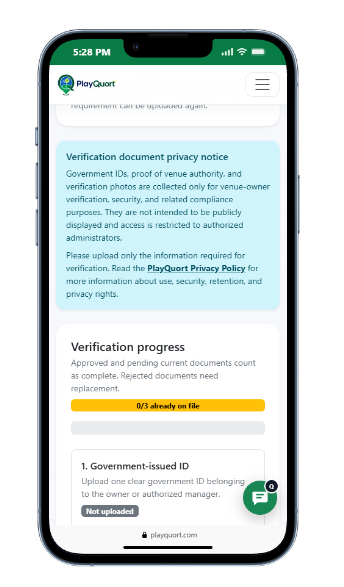
Mobile verification page showing privacy notice and verification progress
Review the privacy notice and your verification progress.
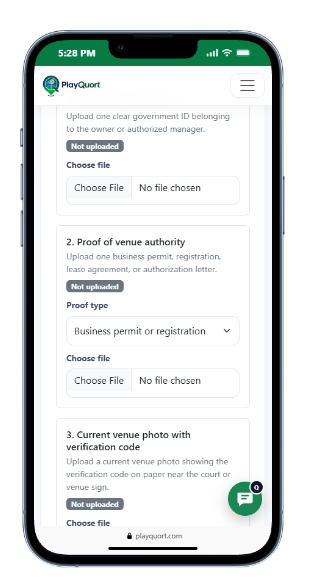
Mobile verification page showing government ID, proof of venue authority, and current venue photo upload fields
Upload your ID, choose the authority proof type, and add the current venue photo.
4

Take a current venue photo with your PlayQuort code

Write or print your unique verification code on paper and take a current photo at the venue. The code should be visible near the court or venue sign so our team can confirm that you have access to the location.

Example only: PBV-EXAMPLE
Do not use the example code above. Use the unique verification code shown inside your own PlayQuort Owner Verification Center.
5

Review your files and submit them together

Make sure all three requirements are complete, then submit your verification request. The current upload limit is 5 MB per file.

Business registration number: If you have one, you may add it to your verification information. It is currently optional.
Submit for review
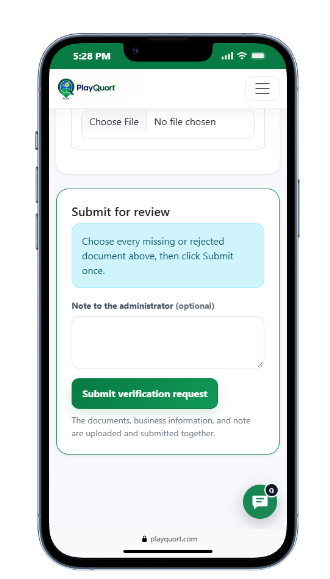
Mobile PlayQuort verification form showing the Submit verification request button
Choose every missing or rejected document, optionally add a note, then click Submit verification request.
6

Wait for PlayQuort review

After you submit, your verification files are locked while the PlayQuort team reviews them. If a requirement needs correction, we can request changes and you can replace the rejected or missing item.

No need to upload approved documents again. Documents already accepted by the administrator stay approved while you correct only the requirement that needs attention.

Before you upload

Use clear files

Photos and scans should be readable, properly oriented, and not heavily cropped.

Use your real venue

The venue photo should be current and should match the venue you are listing on PlayQuort.

Protect private information

Verification documents are not intended to be displayed publicly and are restricted to authorized PlayQuort administrators.

Check your status

Your Verification Center will show whether your request is not submitted, under review, needs changes, or has been verified.

What happens after verification?

Once the PlayQuort team approves your verification request, your owner account is marked as verified. Verification helps players know that PlayQuort has reviewed the owner information and proof submitted for the venue.